Auto-Tune vs Melodyne: Vocal Tuning Tools Compared
Compare Auto-Tune and Melodyne for vocal tuning—real-time correction, offline editing, DNA polyphonic editing, ARA2 DAW integration, pricing, and which tool suits your workflow.
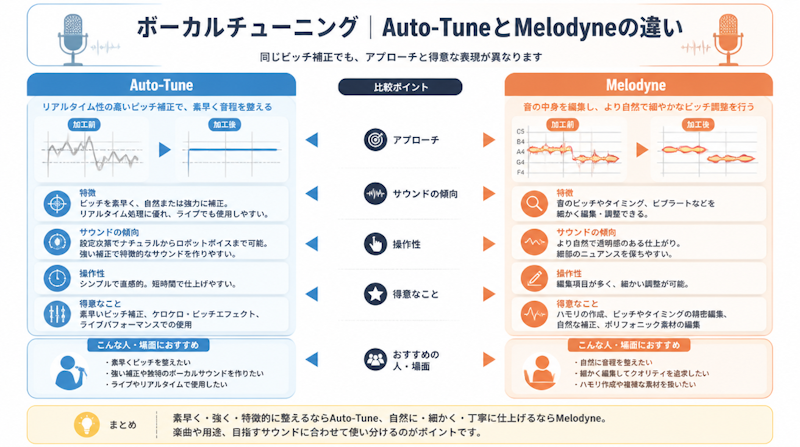
Vocal tuning has become an indispensable part of modern music production. Whether you're working in a professional recording studio or building tracks at home, pitch correction software can dramatically elevate the quality of a vocal performance. Two plugins dominate this space: Auto-Tune (by Antares) and Melodyne (by Celemony). Both are used daily by producers, mixing engineers, and artists at every level of the industry.
This guide covers everything you need to know about vocal tuning—how pitch correction works, what makes each tool unique, how they compare in real-world use, how editions and pricing break down, and how to choose the right tool (or combination of tools) for your specific workflow.
What Is Vocal Tuning?
How Pitch Correction Works
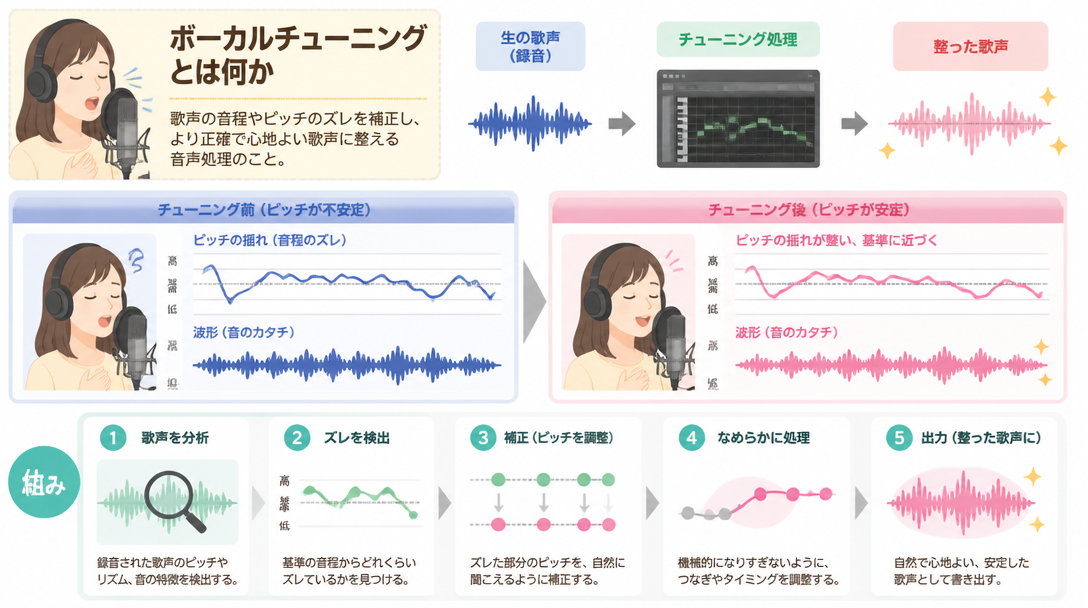
Vocal tuning—commonly called pitch correction—is the process of using software to fix inaccuracies in a recorded vocal performance. Human singers naturally produce slight variations in pitch, and while small fluctuations give a performance character, larger deviations can make a vocal sound noticeably out of tune. Pitch correction software analyzes the audio signal in real time or after recording, then shifts the pitch of individual notes toward the nearest correct pitch within a defined musical scale.
There are two primary ways pitch correction is used in practice. The first is transparent correction—subtle adjustments that tighten up a performance without the listener ever noticing any processing has taken place. The second is pitch correction as an effect—deliberately applying aggressive correction to create a robotic, synthesized vocal texture. This sound, popularized by artists like T-Pain and Kanye West, has become a defining element of contemporary pop, hip-hop, and R&B.
Real-Time Correction vs. Offline Editing
Pitch correction tools generally fall into two workflow categories: real-time correction and offline (post-recording) editing. Understanding the difference is key to choosing the right approach for any given situation.
- Real-time correction: The plugin is inserted directly onto a vocal track and corrects pitch on the fly during playback. This approach works during tracking (so the singer hears a tuned version in their headphones), for live performance, and for fast mixing workflows where speed matters more than surgical precision.
- Offline editing: Recorded audio is transferred into a dedicated editor window, where individual notes appear as visual objects that can be manipulated by hand. This method is slower but allows note-by-note control over pitch, timing, vibrato, and formant characteristics.
Auto-Tune offers both modes—an automatic real-time mode and a manual graphical editor. Melodyne is built primarily around the offline editing approach, giving it exceptional precision at the cost of a more involved workflow.
How Vocal Tuning Is Used in Professional Settings
In professional production environments, pitch correction is rarely treated as a rescue tool for bad performances. It's used proactively and creatively. Engineers use Melodyne's DNA technology to extract individual notes from chord-based instruments and repurpose them as harmony parts. Auto-Tune's real-time engine is integrated into live performance rigs so artists perform in tune every night. Vocal producers use both tools in sequence to refine a performance that was already strong to begin with.
It's worth noting that the quality of pitch correction is directly tied to the quality of the original recording. A clean, well-recorded vocal requires far less correction and responds better to processing. For guidance on capturing great vocals at home, see Home Vocal Recording Tips: A Complete Guide to Recording Techniques.
How Auto-Tune Works and How to Use It
Auto Mode and Graph Mode: Two Approaches in One Plugin
Antares Audio Technologies developed Auto-Tune in 1997, making it the world's first commercially available pitch correction plugin. The current flagship product, Auto-Tune Pro 11, ships with two core operational modes.
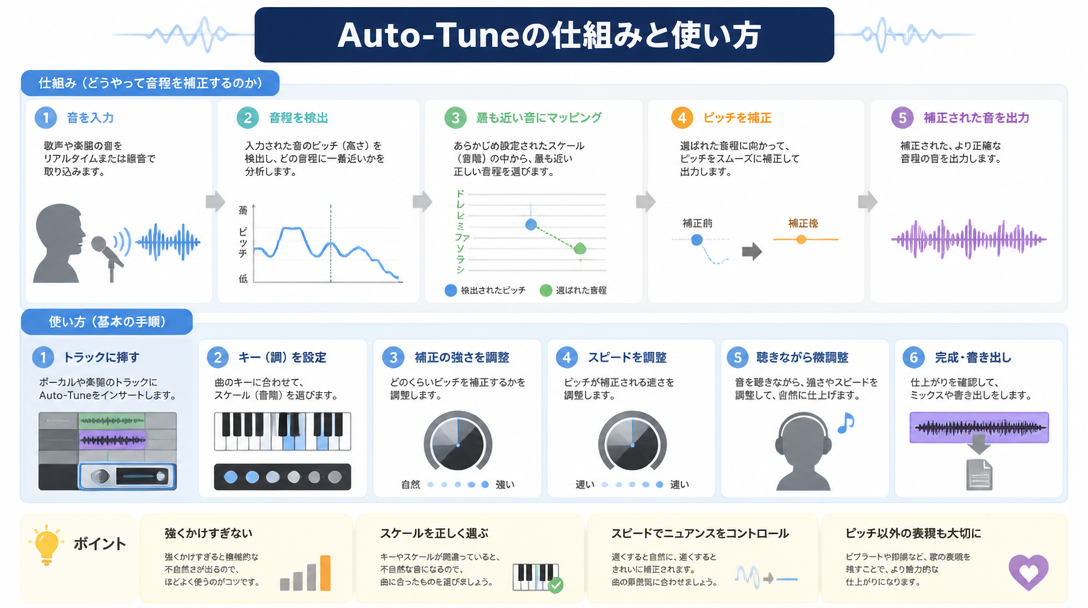
- Auto Mode: The user selects the key and scale of the song, and the plugin automatically corrects pitch in real time from that point forward. The single most important parameter here is Retune Speed—a low value produces instant, robotic snapping while a higher value allows natural pitch transitions. Auto Mode is fast, requires minimal setup, and is ideal for use during tracking and live performance.
- Graph Mode: This mode visualizes the vocal's pitch curve over time as an editable graph. Each note can be viewed, moved, and reshaped manually. Graph Mode is best for specific problem areas that Auto Mode handles inconsistently or for any situation requiring detailed, intentional pitch sculpting.
According to MusicTech's coverage of Auto-Tune Pro 11, the latest version introduces a Multi-View feature that allows multiple vocal tracks to be displayed and edited simultaneously within a single window. The plugin also includes a four-part Harmony Engine that generates real-time harmonies controllable via MIDI—a powerful tool for producers who want to build lush vocal arrangements without recording additional takes.
How to Create the Hard-Tune (Robotic Vocal) Effect
The hard-tune effect—sometimes called the "T-Pain effect" or "cher effect"—is Auto-Tune's most iconic sonic contribution. Achieving it is straightforward once you understand which parameters to adjust.
- Set the Input Type to "Vocal."
- Select the correct Key and Scale for your track (e.g., C Major). This step is critical—an incorrect key setting will snap notes to the wrong pitches.
- Reduce Retune Speed to 0–5 ms. The closer to zero, the more mechanical and robotic the result.
- Set Humanize to 0 to eliminate any natural pitch fluctuation during held notes.
- Disable Flex-Tune, as this feature is designed to preserve natural pitch nuance—the opposite of what the hard-tune effect requires.
This specific combination of settings produces the characteristic stepped, synthesizer-like pitch movement that defines the effect. No other tool on the market replicates this exact sonic character, which is why Auto-Tune remains the go-to plugin for genres built around this aesthetic.
ARA2 Integration for Seamless DAW Workflows
Auto-Tune Pro 11 supports the ARA2 (Audio Random Access) plugin standard. In compatible DAWs, ARA2 allows the plugin to access tempo, pitch, and timeline data from the host application instantly, without requiring any manual audio transfer steps.
As reported by Production Expert, ARA2 integration means that Graph Mode is automatically populated with track data as soon as the plugin is opened—eliminating the waiting period that was previously required to transfer audio. DAWs with ARA2 support for Auto-Tune include:
- Logic Pro (version 10.7.5 and later)
- Cubase (version 12 and later for Auto-Tune Pro X; versions 13 and 14 require Auto-Tune Pro 11)
- Studio One
For users on DAWs without ARA2 support, Auto-Tune still functions as a standard plugin—ARA2 simply streamlines the workflow for those whose software supports it.
How Melodyne Works and How to Use It
DNA Technology and Polyphonic Editing
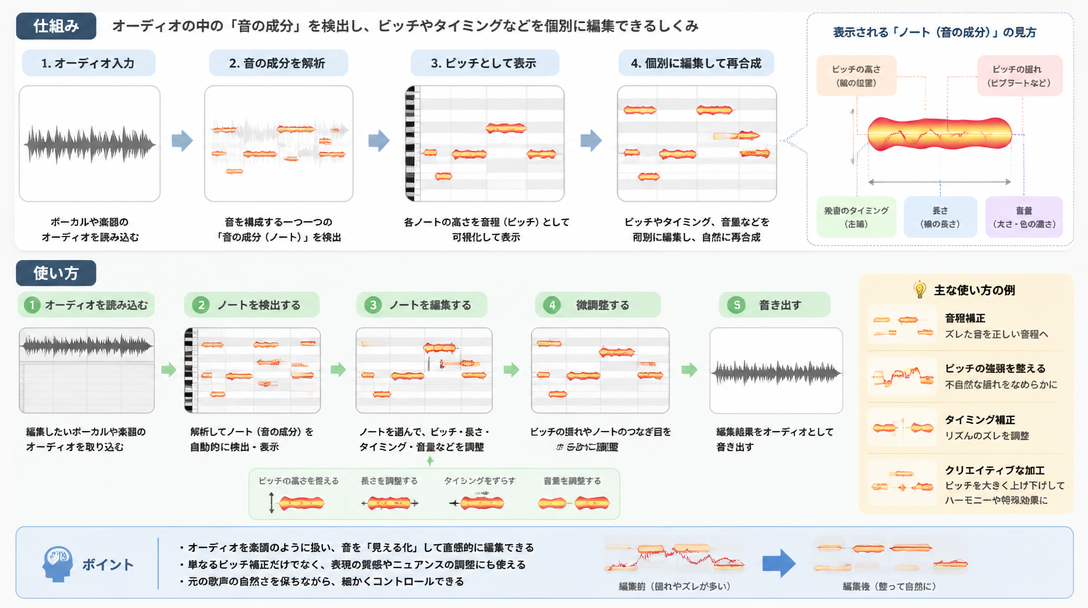
According to the Celemony website, Melodyne is designed as a musically intelligent audio editor—one that understands the musical content of a recording and allows users to work with individual notes rather than raw waveforms. The software's most groundbreaking capability is DNA (Direct Note Access), introduced in 2009.
DNA technology allows Melodyne to analyze polyphonic audio sources—guitar chords, piano voicings, full arrangements—and identify the individual pitches within them. Once analyzed, those pitches can be edited independently, even though they exist simultaneously in the same audio file. Before DNA, it was widely considered impossible to edit individual notes within a polyphonic recording without isolating each instrument track separately. Melodyne's algorithm made this possible, and it remains one of the most technically impressive achievements in audio software history.
A detailed review of Melodyne 5 by MusicTech highlights the addition of sibilance detection as one of the most significant improvements in the latest version. This feature allows Melodyne to distinguish between pitched vocal content (vowels) and unpitched consonants (sibilants like "s" and "z"), and to treat each appropriately. Earlier versions could inadvertently process sibilants as pitched audio and distort them—sibilance detection solves this longstanding limitation.
The Basic Vocal Editing Workflow in Melodyne
When Melodyne analyzes a vocal track, it represents each note as a visual object called a "blob." These blobs appear in an editor window that resembles a piano roll, with pitch on the vertical axis and time on the horizontal axis. Users can click, drag, reshape, and quantize individual blobs with a variety of purpose-built tools.
A typical Melodyne vocal editing session proceeds as follows:
- Insert Melodyne as a plugin on the vocal track in your DAW.
- Transfer the audio to Melodyne. In DAWs without ARA2 support, this is done by clicking the "Transfer" button and playing back the track from start to finish. ARA2-compatible DAWs handle this automatically.
- Review the editor window. Each blob represents one sung note. Vertical position indicates pitch; the height of the blob represents volume; internal wave patterns indicate tonal character.
- Use the "Correct Pitch" macro for a global pass—this snaps all notes toward their nearest correct pitch according to the detected scale. Adjust the correction amount using the slider to retain natural feel.
- Go through the track manually and address specific notes that need individual attention. Double-clicking a blob snaps it to the nearest semitone. Dragging adjusts it freely.
For guidance on integrating a tuned vocal into a finished mix, see Mixdown Fundamentals: How to Use EQ and Compression Effectively.
Melodyne 5 Editions: Features and Pricing Compared
According to the official Celemony editions comparison page, Melodyne 5 is available in four tiers, each designed for a different level of production need.
Edition | Key Features | Best For | Approx. Price |
|---|---|---|---|
Essential | Basic pitch and timing editing | Beginners, casual use | ~$49 |
Assistant | Professional vocal editing, formant control, Audio-to-MIDI conversion | Serious vocal production | ~$149 |
Editor | DNA polyphonic editing, sample-accurate editing tools | Instrumental pitch editing alongside vocals | ~$299 |
Studio | Multitrack editing, Sound Editor, full feature set | Professional studios, power users | ~$399+ |
Celemony offers cross-grade pricing, meaning users who start with a lower edition only pay the difference when upgrading. This makes the Essential or Assistant edition a low-risk entry point—start where your needs are today, and move up as your workflow demands it.
Auto-Tune vs. Melodyne: A Complete Vocal Tuning Comparison
Workflow and Ease of Use
According to comparative analysis from Sound On Sound, the most fundamental difference between Auto-Tune and Melodyne comes down to a trade-off between immediacy and precision. Auto-Tune's Auto Mode begins correcting pitch the moment the track plays—there's no setup beyond selecting a key and scale. Melodyne, by contrast, requires an audio transfer step before editing can begin, which adds time up front but unlocks a level of note-level control that Auto-Tune's automatic modes cannot match.
For fast-moving sessions where a producer needs a polished vocal quickly, Auto-Tune is the more efficient choice. For sessions where the vocal is central to the production and every note needs to be deliberate, Melodyne's editor provides an unmatched degree of control.
Audio Quality and Correction Accuracy
Both tools handle light pitch correction well—small adjustments of a few cents in either direction are virtually inaudible in both plugins. Differences in audio quality become more apparent as correction amounts increase.
- Minor corrections (a few cents): Both tools produce natural, transparent results.
- Moderate corrections (less than a semitone): Melodyne tends to preserve tonal character more effectively. Auto-Tune can begin to introduce artifacts, particularly on sustained vowels.
- Significant corrections (a semitone or more): Melodyne holds up considerably better. Auto-Tune's artifacts become more audible and may require manual Graph Mode work to address.
- Hard-tune effect (intentional robotic sound): Auto-Tune is unmatched here. Melodyne is not designed to produce this effect and cannot replicate it.
The practical implication is straightforward: for surgically precise tuning work where audio quality must be preserved across large pitch changes, Melodyne is the stronger tool. For the hard-tune effect or any situation where the artifact character is part of the aesthetic, Auto-Tune is the only real option.
Feature and Pricing Summary
Feature | Auto-Tune Pro 11 | Melodyne 5 Assistant |
|---|---|---|
Real-time pitch correction | ✅ Core feature (Auto Mode) | ❌ Offline editing only |
Offline precision editing | ✔ Graph Mode | ✅ Primary workflow |
Polyphonic editing (DNA) | ❌ Not supported | ⚠️ Editor edition and above |
Hard-tune / robotic effect | ✅ Signature feature | ❌ Not supported |
Timing / rhythm correction | ⚠️ Limited | ✔ Dedicated feature |
Formant adjustment | ✔ Supported | ✔ Supported |
ARA2-compatible DAWs | Logic Pro, Cubase, Studio One | Logic Pro, Cubase, Studio One, Pro Tools, and others |
Approximate price | ~$459 (perpetual license) | ~$149 (Assistant edition) |
Which Tool Should You Choose?
When Auto-Tune Is the Right Choice
Auto-Tune is the better fit in the following situations:
- Real-time pitch correction is needed during live performance or tracking sessions where the singer monitors their tuned voice in headphones.
- The hard-tune effect is an intentional part of the sonic identity of the music—this is a workflow where there is no substitute for Auto-Tune.
- Speed and simplicity are priorities. Auto Mode requires minimal configuration and delivers immediate results.
- The production context is primarily hip-hop, R&B, trap, electro-pop, or any genre where Auto-Tune's particular sound is stylistically appropriate.
- MIDI-controlled vocal harmonies via the Harmony Engine are part of the production workflow.
Auto-Tune Pro 11 is available for approximately $459 as a perpetual license. Antares also offers Auto-Tune Unlimited, a subscription plan that provides access to the full suite of Antares plugins for a monthly fee—a compelling option for producers who want access to more than just the flagship pitch correction tool. For help selecting the right DAW to run either plugin in, see The Complete DAW Selection Guide.
When Melodyne Is the Right Choice
Melodyne is the better fit in the following situations:
- Vocal editing needs to be precise at the individual note level—adjusting pitch, vibrato, timing, and formant characteristics note by note.
- Pitch editing of instruments (guitars, keyboards, choirs, and other polyphonic sources) is required, which calls for the Editor edition or above.
- Timing and rhythm corrections need to be made alongside pitch corrections within the same editing environment.
- Large pitch changes are needed without sacrificing audio quality. Melodyne handles significant pitch shifts more transparently than Auto-Tune.
- The production style spans multiple genres—pop, rock, classical, jazz, folk—where naturalness and fidelity to the original performance are paramount.
For producers just getting started, Melodyne Essential (~$49) is an accessible entry point. For serious vocal production work, Melodyne Assistant (~$149) represents excellent value—it includes formant control, Audio-to-MIDI conversion, and professional-quality pitch editing tools at a fraction of the cost of Studio. For information on preparing a finished vocal for distribution, see Mastering Fundamentals: Loudness Standards and Pre-Release Finishing.
The Professional Two-Tool Workflow
Among experienced producers and engineers, combining Melodyne and Auto-Tune in sequence has become a well-established practice. The logic is straightforward: use each tool for what it does best, and layer their strengths to achieve results that neither could produce alone.
- Step 1 — Offline precision editing with Melodyne: Transfer the recorded vocal into Melodyne and address any notes with significant pitch problems. Focus especially on notes that are off by a semitone or more, since these are the corrections most likely to produce artifacts if handled by Auto-Tune's automatic mode. Melodyne's algorithm handles large pitch shifts more cleanly, preserving vocal tone even when moving notes substantially.
- Step 2 — Real-time cleanup with Auto-Tune: After Melodyne has addressed the larger issues, insert Auto-Tune downstream in the signal chain. Set Auto Mode with a Retune Speed of approximately 20–50 ms for a natural-sounding response. At this point, the pitch is already close to correct, so Auto-Tune only needs to smooth out small remaining fluctuations—a task it handles efficiently and transparently.
- Step 3 — Final mix integration: Apply EQ and compression to seat the tuned vocal in the mix. For a comprehensive approach to this stage, see Mixdown Fundamentals: How to Use EQ and Compression Effectively.
This two-stage approach leverages Melodyne's superior handling of large corrections and its resistance to artifacts, while using Auto-Tune's real-time engine to maintain consistent pitch on the micro level throughout the track. The result is a vocal that sounds polished and controlled without the unnatural rigidity that can come from relying too heavily on a single tool's automatic correction.
Summary
Auto-Tune and Melodyne are not competitors so much as they are complements. Each excels in a distinct set of use cases, and understanding those distinctions is what allows producers to use them intelligently. Here are the key takeaways:
- Auto-Tune excels at real-time pitch correction and the hard-tune robotic effect. It is the definitive tool for hip-hop, R&B, and live performance contexts, and its speed makes it valuable in any fast-moving session.
- Melodyne excels at note-level precision editing, large-interval pitch correction without artifacts, polyphonic source editing via DNA, and timing correction. It is the preferred choice for detailed vocal production across all genres.
- Recording quality directly affects tuning outcomes. The better the original take, the less correction is needed, and the more natural the result. Investing in strong vocal performances and good recording technique pays dividends in post-production.
- From a cost perspective, Melodyne Essential (~$49) is the most accessible entry point in either ecosystem. Auto-Tune Pro 11 (~$459) is a professional-tier investment aimed at producers for whom real-time correction and the Auto-Tune effect are essential.
- Advanced producers often use both tools in tandem—Melodyne for offline precision work, Auto-Tune for real-time finishing—combining the strengths of each into a workflow that neither tool could support alone.